> ## Documentation Index
> Fetch the complete documentation index at: https://docs.bolto.com/llms.txt
> Use this file to discover all available pages before exploring further.
# Onboarding
Now that you have signed up on the Bolto platform, please check out the steps below to get you started!
***
## Payroll Setup
1. **Invite Employees:**
**As an admin, you will need to invite yourself as an employee, and invite any other employees to the Bolto platform.**
* You will do so by clicking on the "Overview" or "Employees" tab under Employees on the left of your admin page.
* You will then select "Add Employee" and fill out the requested information.
* To Note: If you invite yourself as an employee, use the same email as your admin account to allow yourself to toggle between the two.
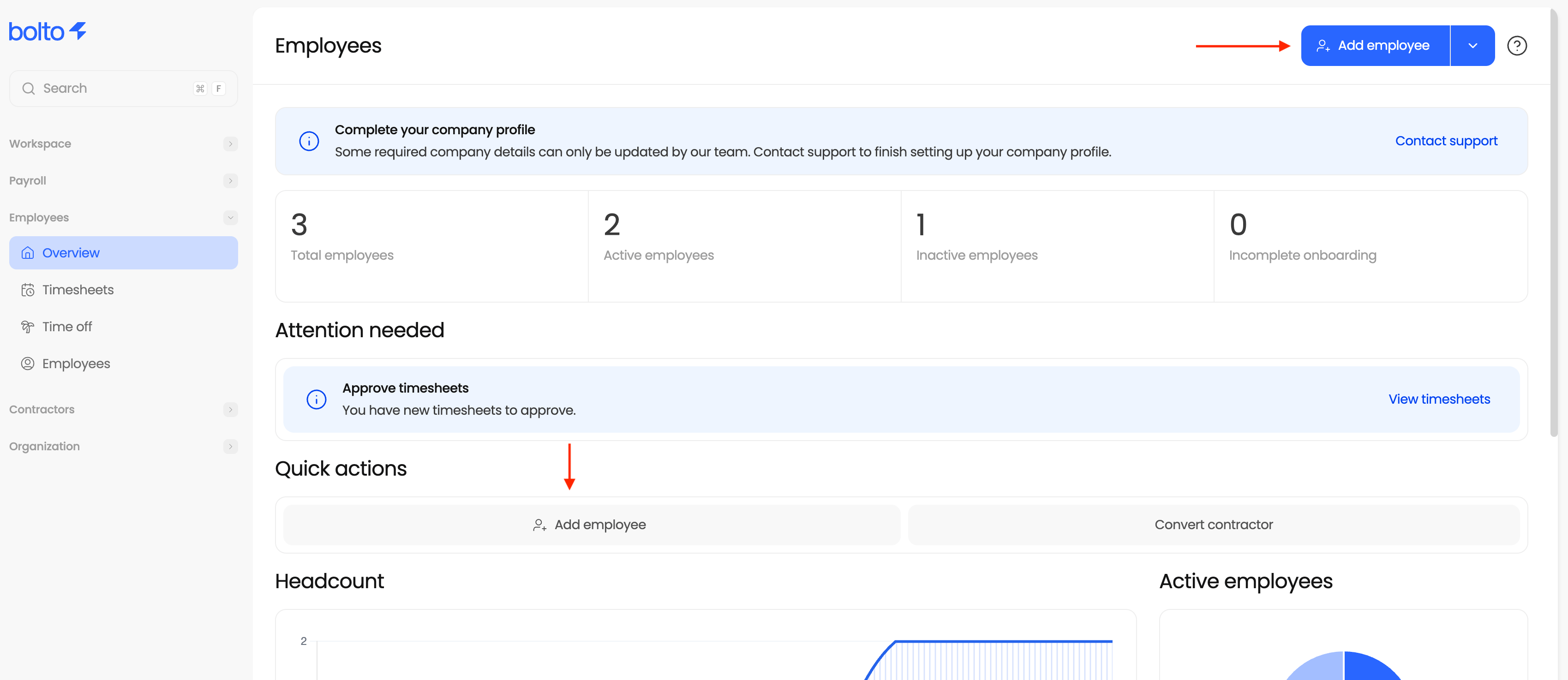 Please follow this [link](/payroll/adding-employees) for a more detailed overview on adding employees
***
2. **Create a Pay Schedule:**
**You will need to create a pay schedule, or the cadence at which your employees will be paid through Bolto**
* You will start by clicking "Pay schedules" under the Payroll tab on the left side of your admin page.
* You will then select "Create pay schedule" and input the desired pay cadence
Please follow this [link](/payroll/adding-employees) for a more detailed overview on adding employees
***
2. **Create a Pay Schedule:**
**You will need to create a pay schedule, or the cadence at which your employees will be paid through Bolto**
* You will start by clicking "Pay schedules" under the Payroll tab on the left side of your admin page.
* You will then select "Create pay schedule" and input the desired pay cadence
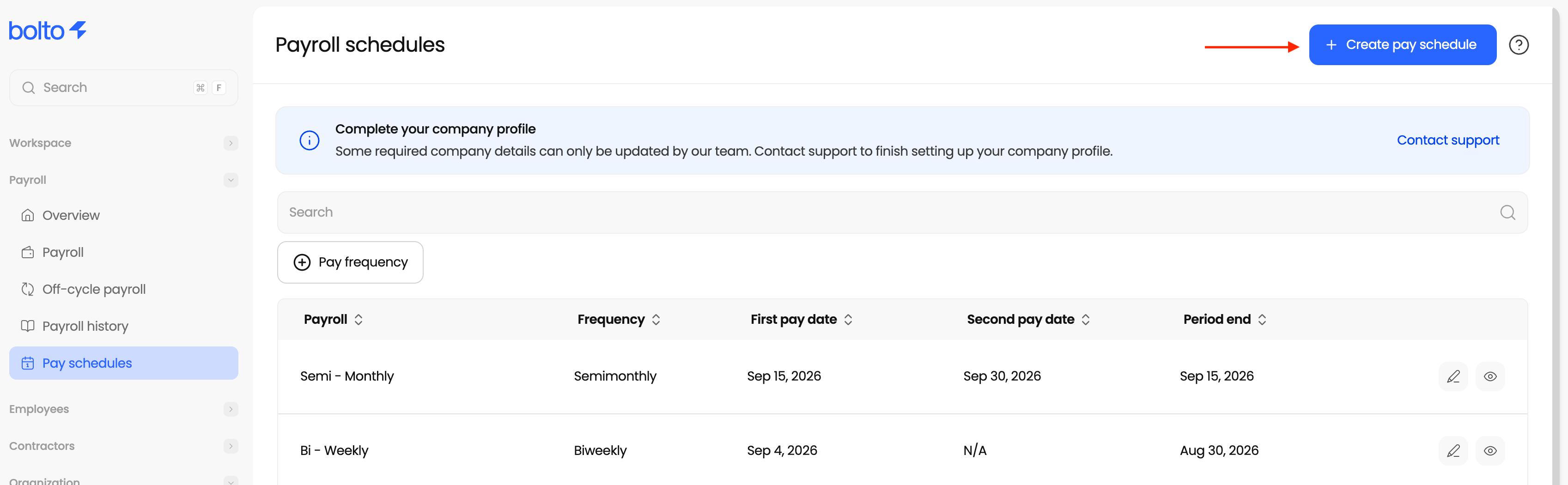 Please follow this [link](/payroll/running-payroll) for a more detailed overview on pay schedules
***
3. **Create a Payroll Group:**
**All employees must be placed into a payroll group in order to be paid**
* You will start by clicking "Payroll" under the Payroll tab on the left side of your admin page.
* Next, select "Create New Payroll Group" and fill out the requested information including pay schedule, and adding employees.
Please follow this [link](/payroll/running-payroll) for a more detailed overview on pay schedules
***
3. **Create a Payroll Group:**
**All employees must be placed into a payroll group in order to be paid**
* You will start by clicking "Payroll" under the Payroll tab on the left side of your admin page.
* Next, select "Create New Payroll Group" and fill out the requested information including pay schedule, and adding employees.
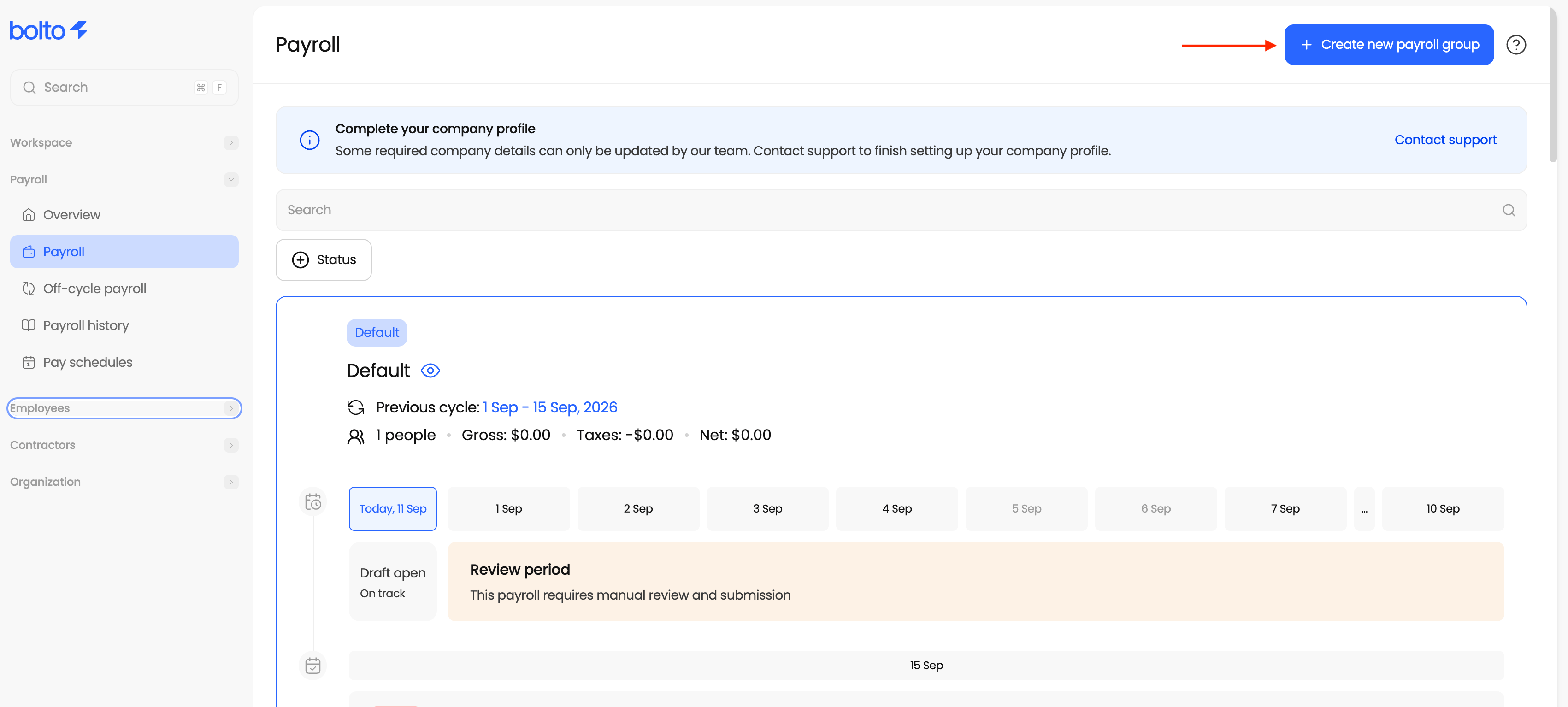 Please follow this [link](/payroll/running-payroll) for a more detailed overview on payroll groups
***
4. **Run Payroll:**
**Now that all employees are in a payroll group, you are ready to run payroll**
* You will start by clicking "Payroll" under the Payroll tab on the left side of your admin page.
* Next, find the desired payroll group and select "Review Payroll"
* Confirm all information looks correct, then preview and submit
Please follow this [link](/payroll/running-payroll) for a more detailed overview on payroll groups
***
4. **Run Payroll:**
**Now that all employees are in a payroll group, you are ready to run payroll**
* You will start by clicking "Payroll" under the Payroll tab on the left side of your admin page.
* Next, find the desired payroll group and select "Review Payroll"
* Confirm all information looks correct, then preview and submit
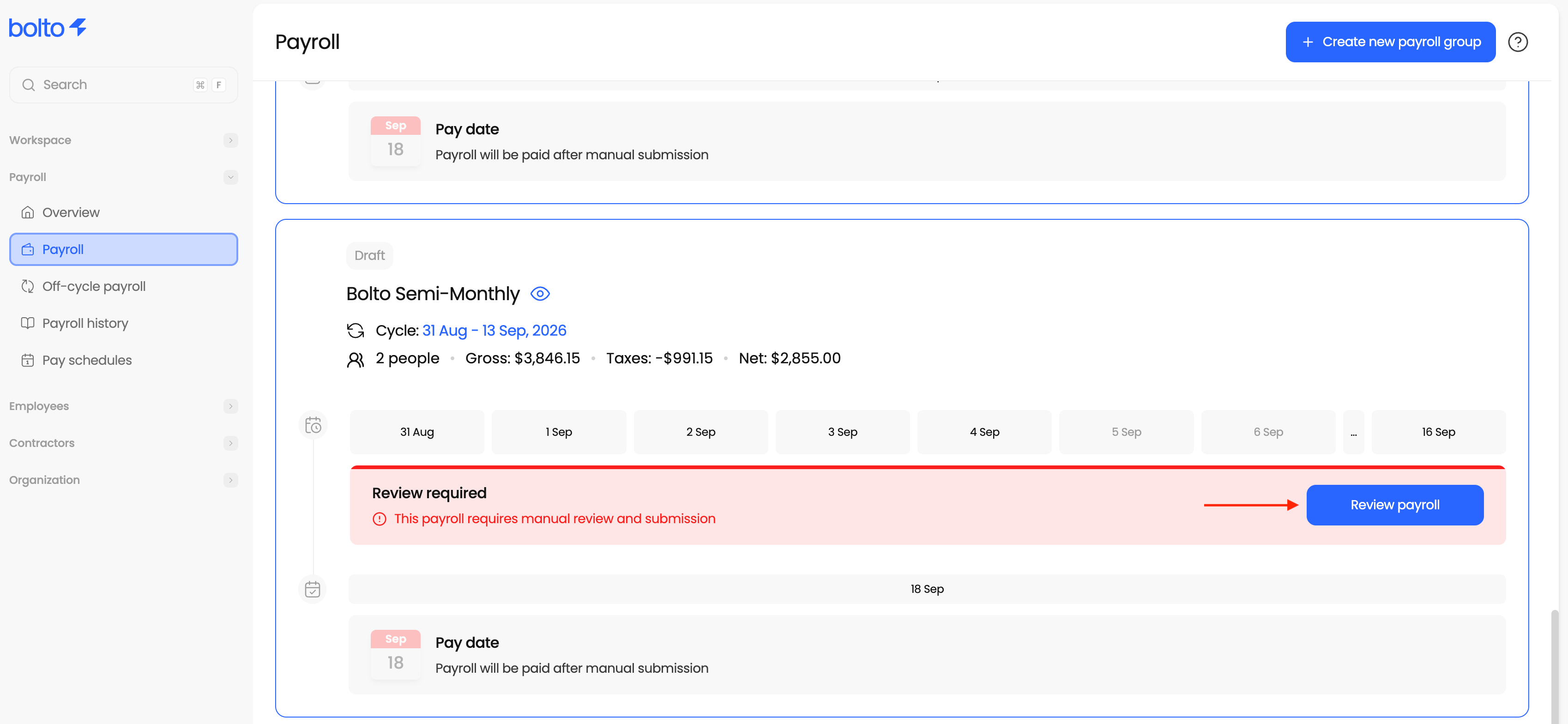 Please follow this [link](/payroll/running-payroll) for a more detailed overview on running payroll
***
Set up any remaining items such as:
* [PTO policies](/payroll/time-off-and-timesheets)
* [Benefits](/payroll/benefits-and-deductions)
* [Company holidays](/hr/calendar)
This documentation is built and hosted on [Mintlify](https://mintlify.com), a developer documentation platform.
Please follow this [link](/payroll/running-payroll) for a more detailed overview on running payroll
***
Set up any remaining items such as:
* [PTO policies](/payroll/time-off-and-timesheets)
* [Benefits](/payroll/benefits-and-deductions)
* [Company holidays](/hr/calendar)
This documentation is built and hosted on [Mintlify](https://mintlify.com), a developer documentation platform.